A Minecraft launcher for Windows
Your packs,
on every PC you play on.
CloudLauncher keeps your modded instances on a server. Set a pack up once, then download it on the laptop, or give it to a friend with a link. Upload a change and the people you share with get it the next time they press Play.
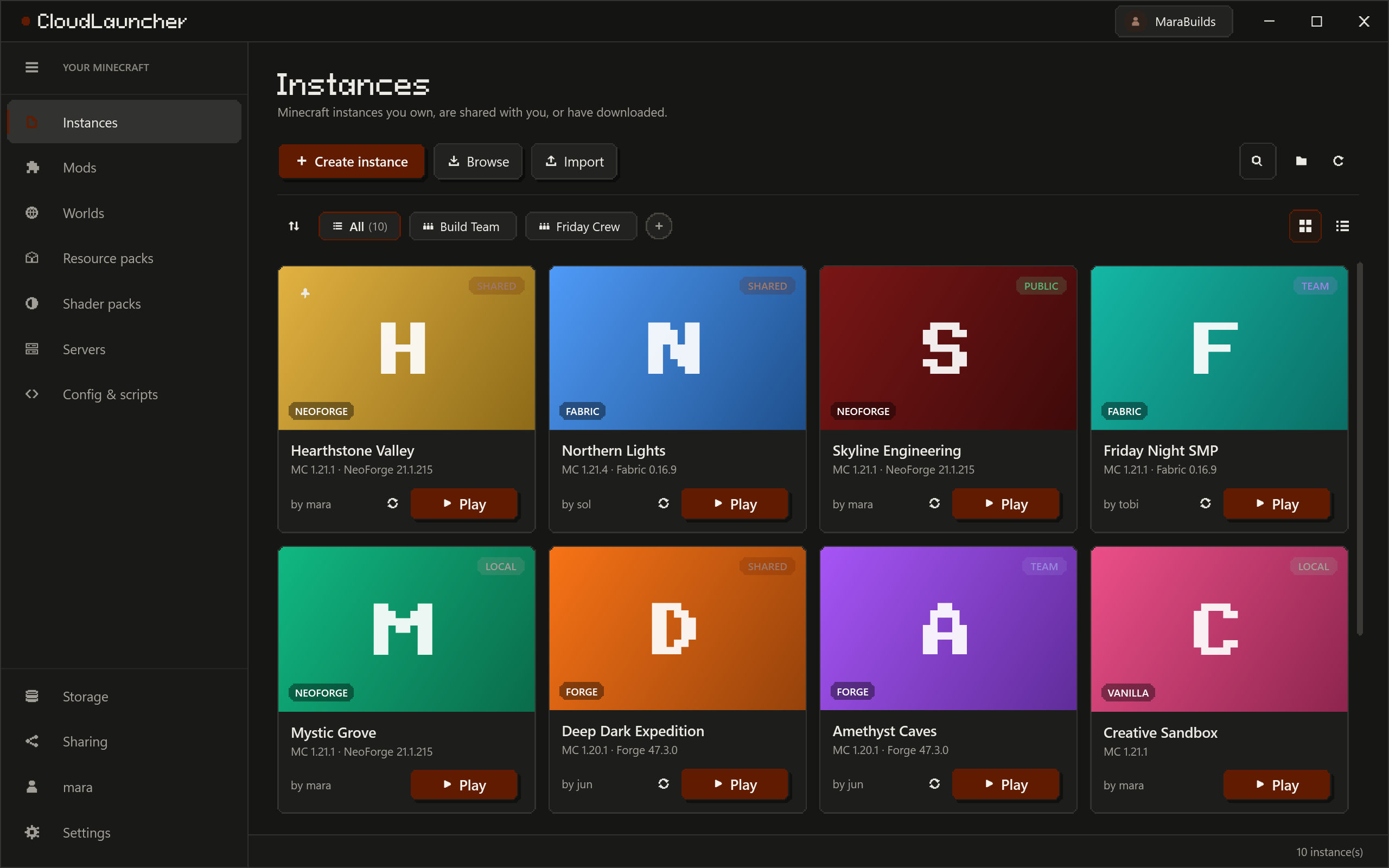
Sync
Set it up once. Download it anywhere.
Publish an instance and its files live on the server. On another PC, sign in and press Download: same mods, same configs, same scripts. Your worlds and your keybinds stay on the PC they belong to.
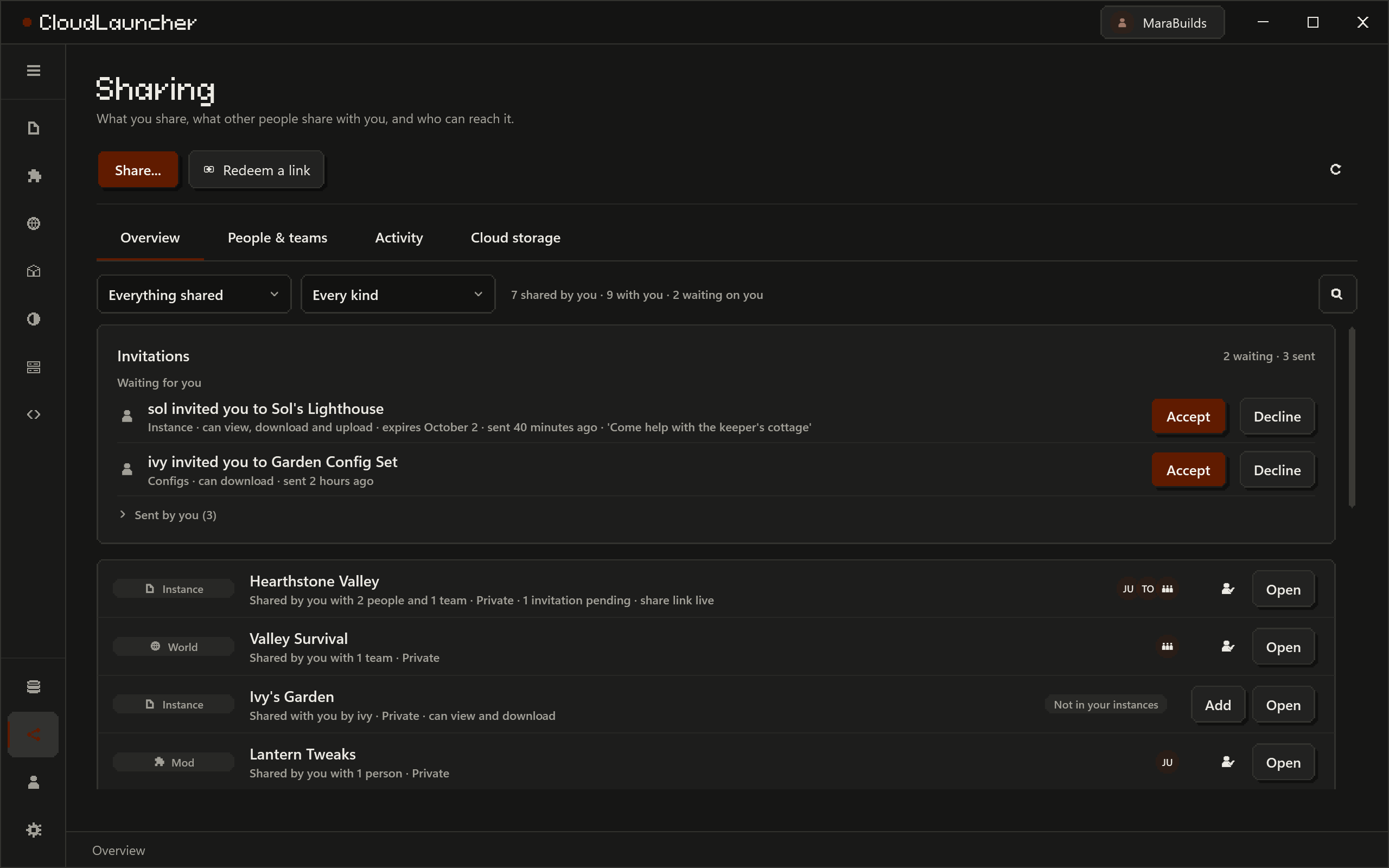
Sharing
Give a pack to a friend with a link.
Invite someone by username and the instance waits in their launcher until they accept or decline. Or copy a share link and paste it in a chat: it works until you revoke it, or until the expiry you gave it.
- Pick what they can do: view, download, upload changes, or manage who else has it.
- Share with a team instead of one person at a time. Teams have members, admins and an owner.
- An invitation only ever adds. Redeeming a read-only link never takes away access someone already had.
- The same server hosts your own mods, worlds, resource packs, shader packs, config sets, KubeJS scripts and data packs, shared the same way, each with its own versions and changelogs.
Instances
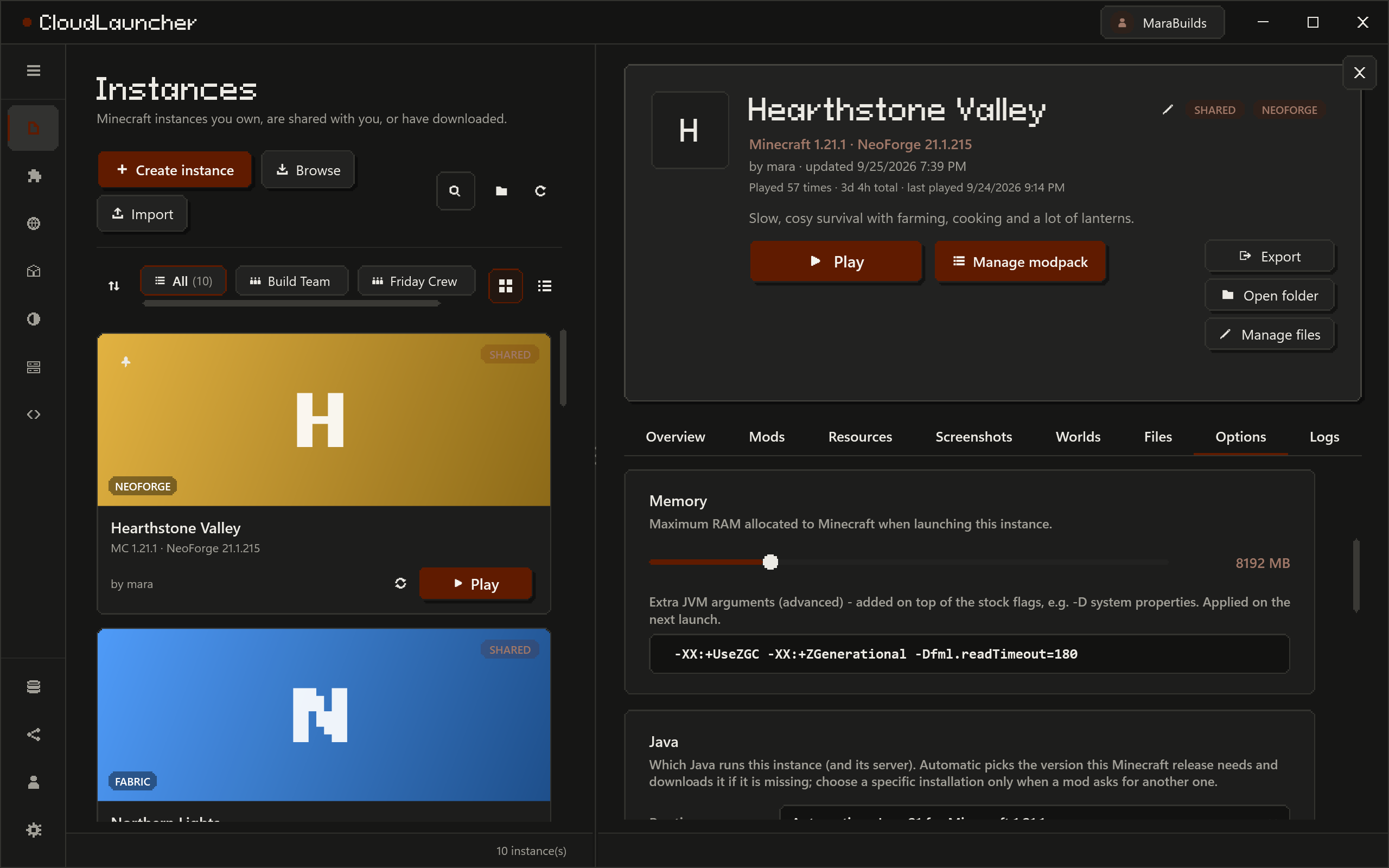
Everything about one instance, on one page.
Play, update, export, open the folder. Logs sit next to crash reports, with find and a filter by level, and you can copy or save one for a bug report. Mods, resource packs, screenshots, worlds and files each have a tab.
A file manager per instance
Browse and drag files in, edit configs and scripts in place (encoding and line endings are kept as they were), see where the disk went, and diff the whole thing against another instance.
Downloads you can pause
A big modpack can be paused mid-file or stopped. Stopping takes the instance back to how it was before, and never touches files that were already there.
The right Java, and your own flags
The launcher picks the Java your Minecraft version wants and downloads it if needed. Memory and JVM arguments are per instance, and so is the Java if you want to choose.
Mods
Built for packs that got out of hand.
CurseForge and Modrinth in one browser, searched for the Minecraft version and loader of the instance you picked. Installing a mod brings its required dependencies. Then there's everything you need once a pack has a few hundred of them.
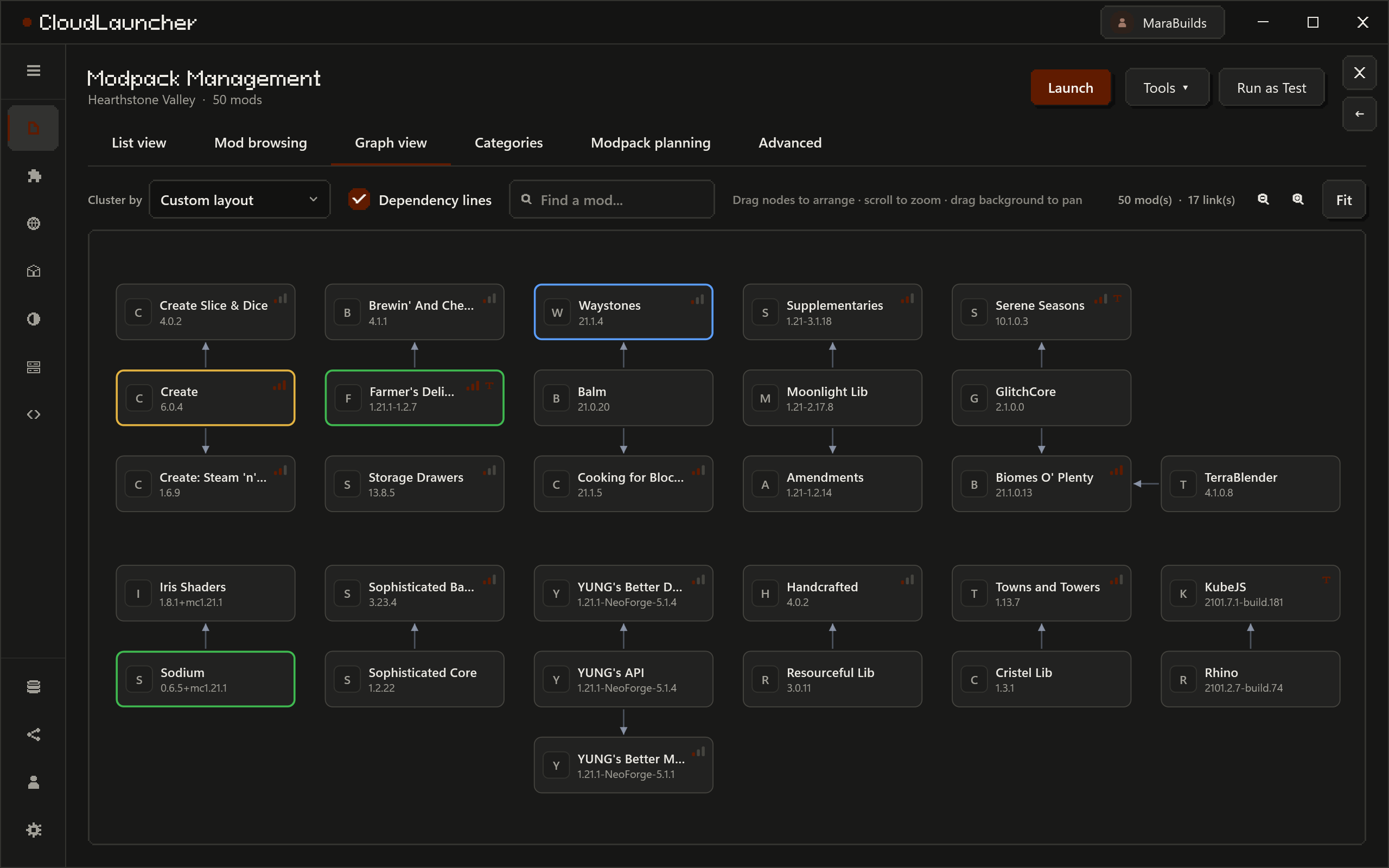
The graph draws up to 3,000 mods and every line between them. Categories fold away, and a find box jumps to one mod.
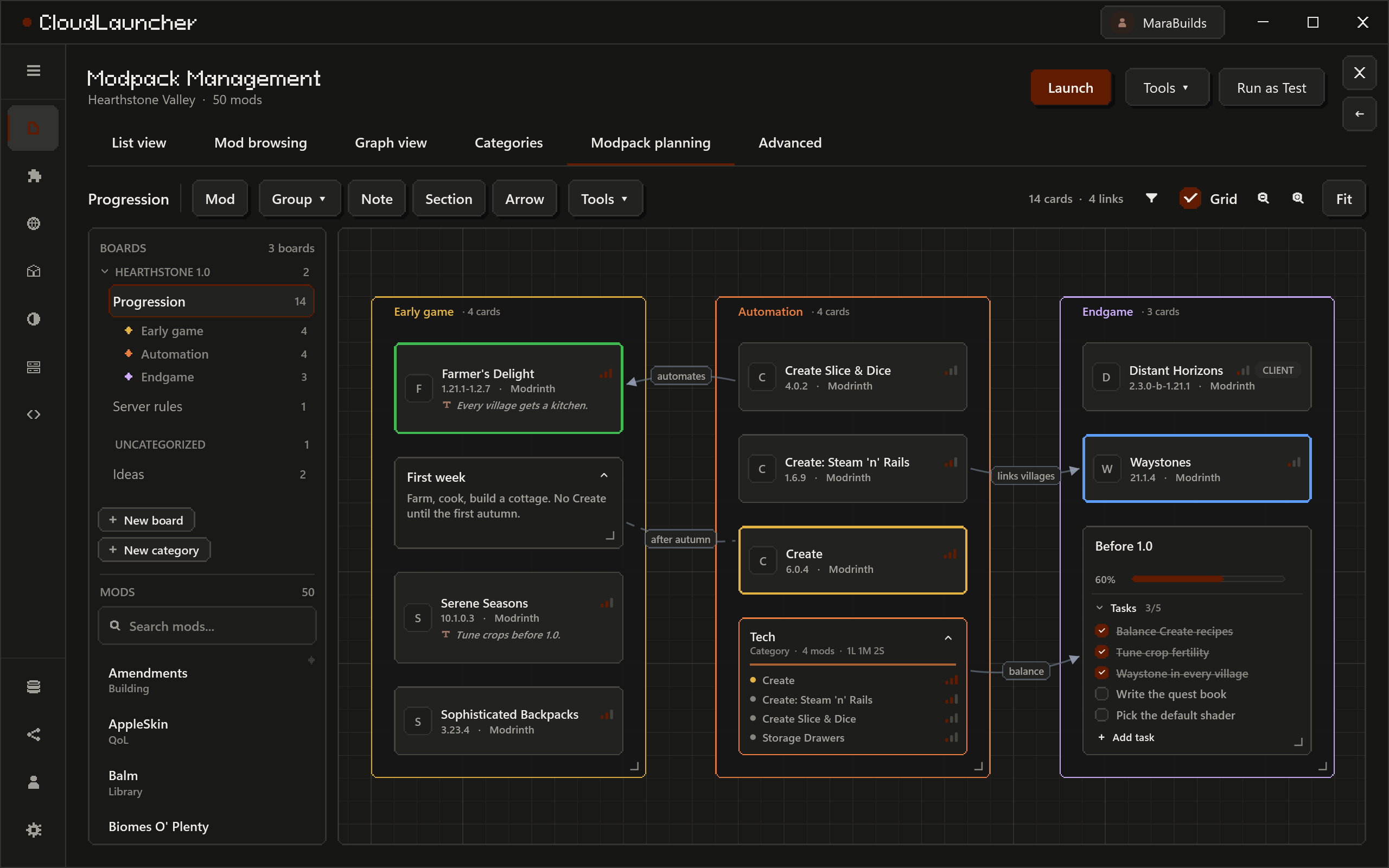
Mod cards, live groups like "everything tagged Magic" that update themselves, notes with task lists or a progress bar, sections that carry their cards when you drag them, and arrows between any of it.
Update checks in bulk
The stores are asked about the whole pack in a few requests, even for 1,900 mods. Only the leftovers go one at a time, at a pace you set.
Every changelog in the jump
Updating a mod that's three versions behind shows all three changelogs, newest first. Right-click any version row to read that version's changelog.
Notes, categories, priorities
Tag mods with categories and priorities, leave a note on one, lock a version, mark it client-only. Conflicts are flagged, and every mod name links to its store page.
Servers
Every server from every instance, in one list.
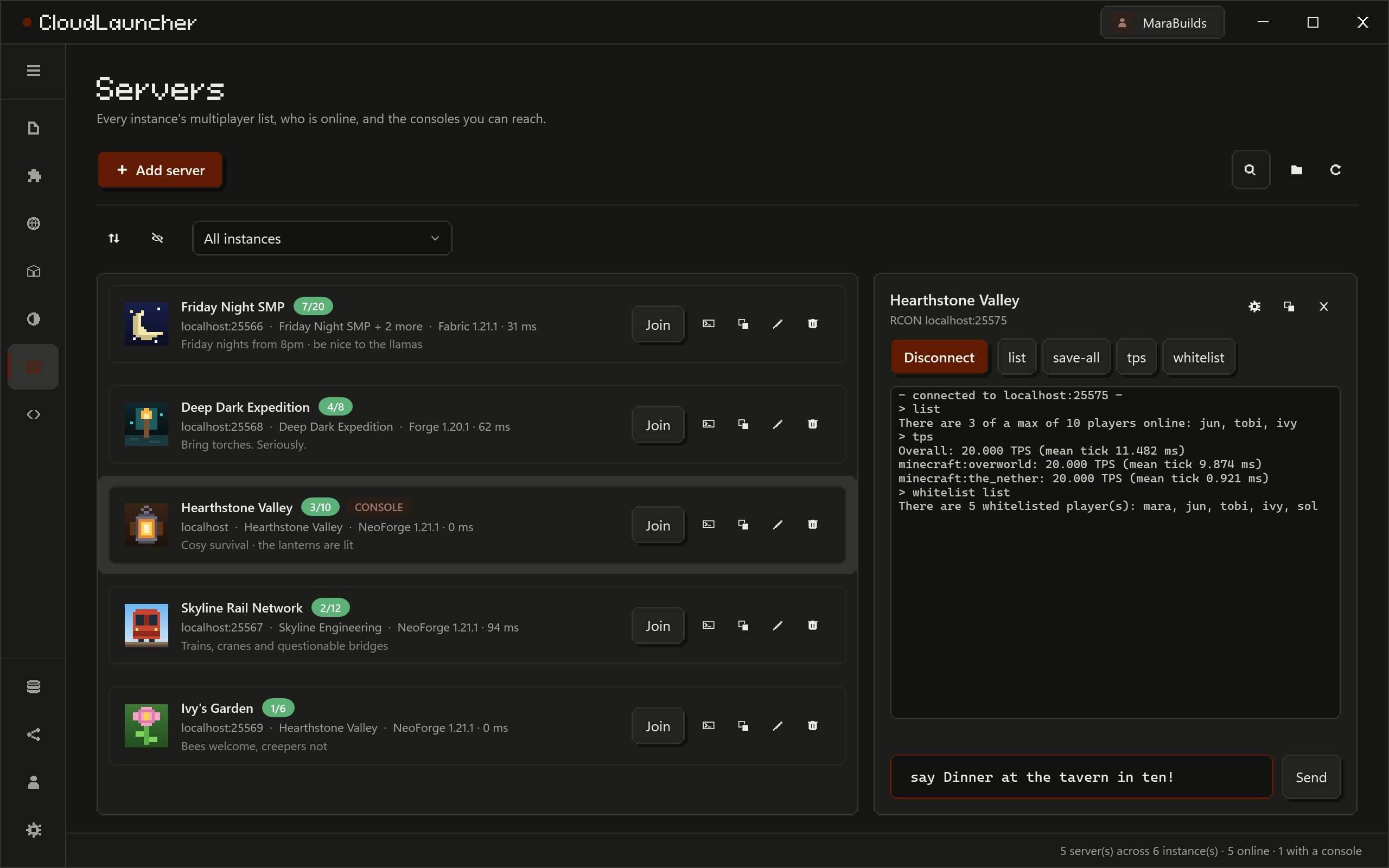
Live status, players, MOTD and ping, checked in the background. Join straight from the launcher, and copy a server into another instance without opening the game.
- An RCON console for the servers you run, with command history and buttons for the commands you actually type.
- Or run one yourself: the launcher installs the matching NeoForge, Forge or Fabric server for an instance, starts and stops it, and shows its console.
- Edit
server.properties, ops, the whitelist and bans in a form, and see which of the pack's mods actually reach the server, so a client-only mod doesn't quietly break it.
Export
Hand the pack to people who use something else.
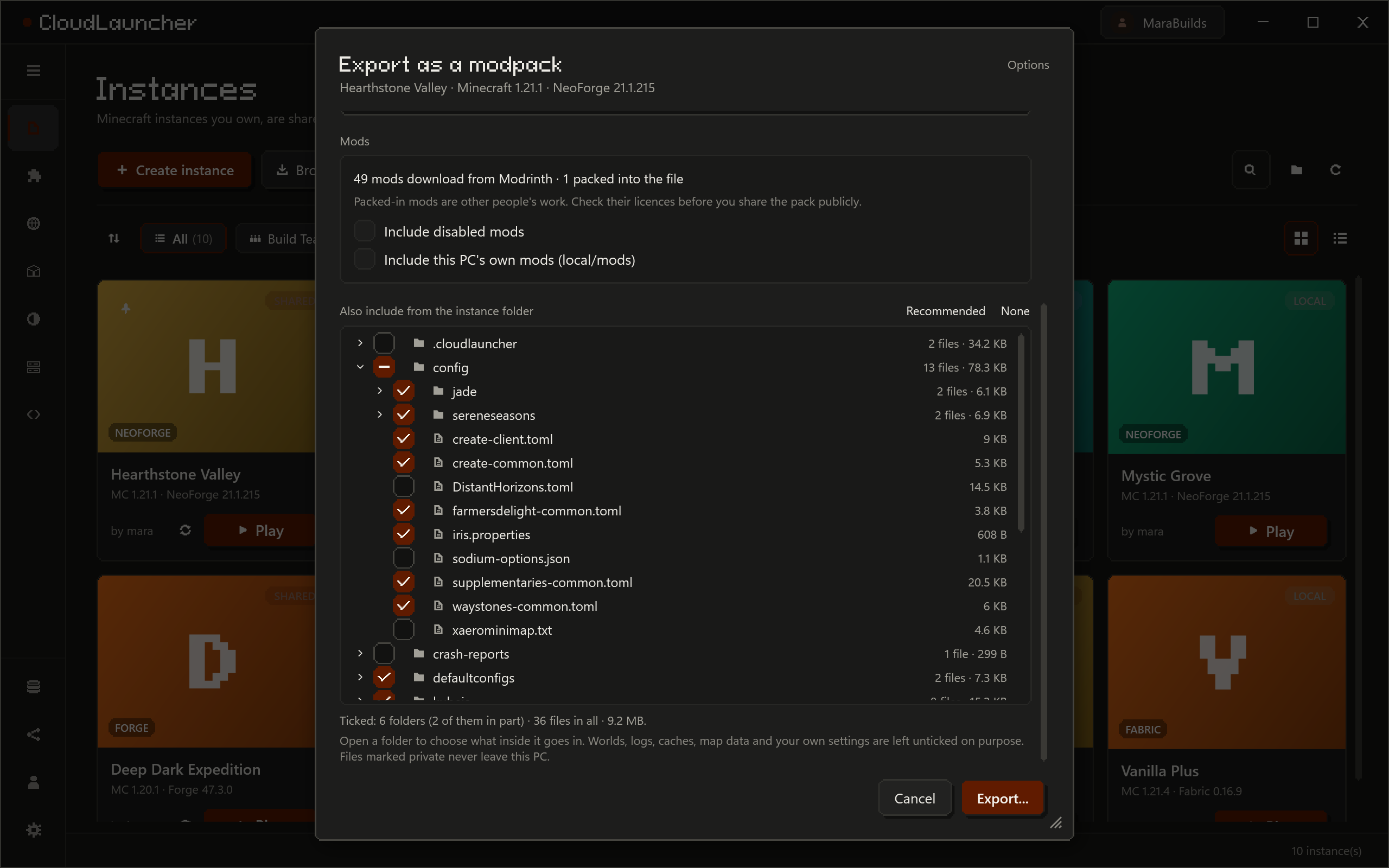
Export writes a CurseForge .zip or a Modrinth .mrpack. Mods from the stores go in as links, everything else is packed in, and disabled mods stay disabled.
- Choose what goes in down to a single file: one mod's config left out, one world out of
saves, orkubejsminus one script. - CurseForge exports carry
modlist.html, the same file the CurseForge app writes. - Files marked private are shown as such and never leave your PC.
- Import works the other way round: a
.mrpackor a CurseForge.zipbecomes an instance.
Appearance
It looks like this page. Or like you want it to.
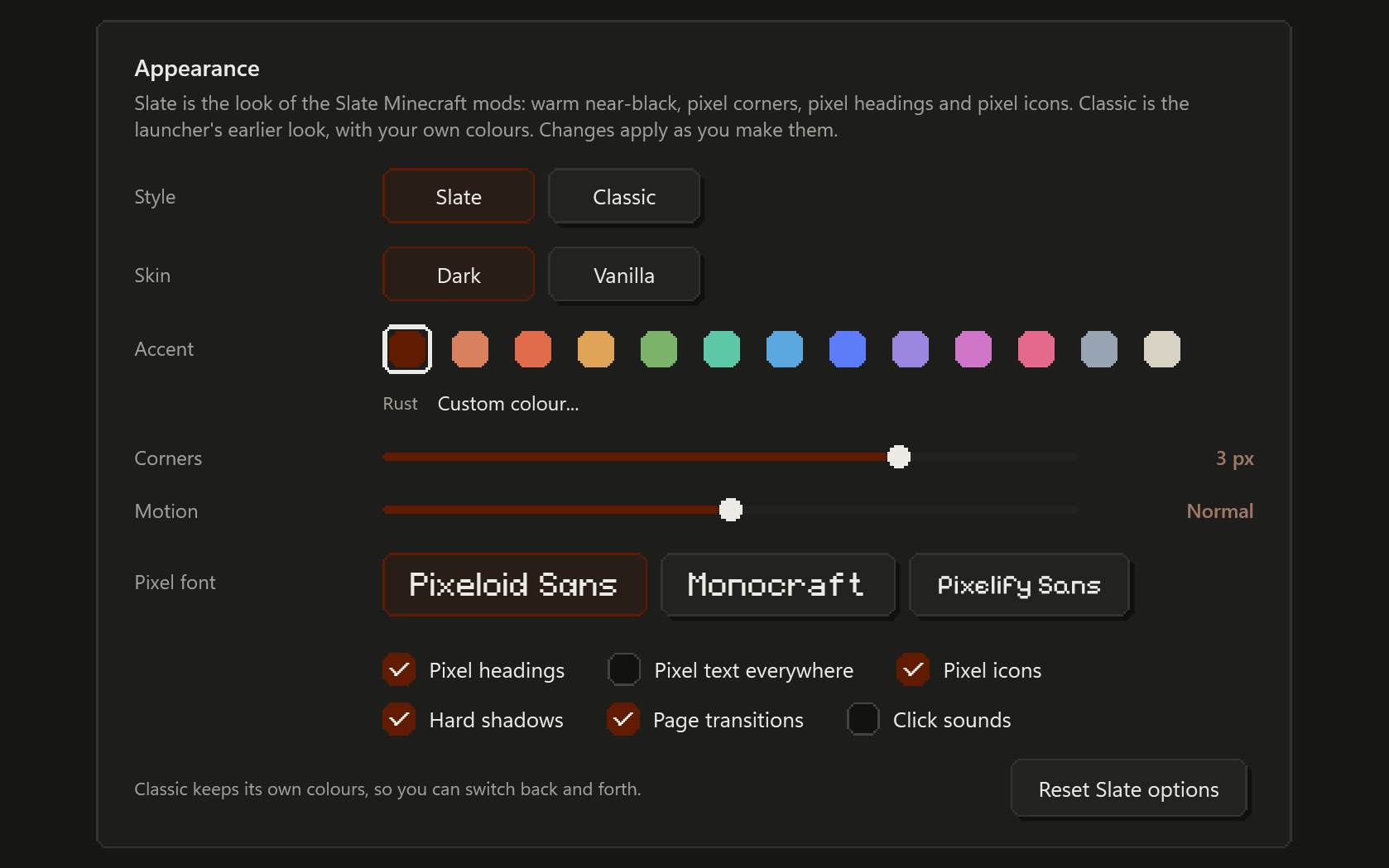
The launcher uses the design of the Slate Minecraft mods: warm near-black, one accent colour, pixel-stepped corners, hard two-pixel shadows, pixel headings (Pixeloid Sans by default) and pixel icons.
The Appearance settings change it as you go: the accent (thirteen presets or any colour), corners from square to four steps, motion speed and the pixel font (Pixeloid Sans, Monocraft or Pixelify Sans). Pixel headings, pixel text, pixel icons, shadows, page transitions and click sounds each switch on and off. There's a Vanilla skin in Minecraft's grey stone, and the Classic look if you'd rather have the old launcher back.
Try them: this page recolours itself the same way the launcher does. Nothing is saved.
And the rest
The parts that don't need a screenshot.
Worlds
Seed with a copy button, game mode, difficulty, version and size, read from the save itself. Back up and restore, duplicate, copy to another instance, import or export a .zip.
Packs stored once
Resource packs and shaders are kept once and linked into every instance that uses them: twenty instances with the same 400 MB pack cost 400 MB. When two packs replace the same files, the launcher says which one you actually see.
Config & scripts
Search inside every instance's config and KubeJS files at once, compare one file between two instances, and copy it into several; what it replaces is backed up first. KubeJS errors from the logs point at the script that caused them.
Storage that adds up
Where your disk went, by category and by instance. Linked files are counted once, and each instance shows what deleting it would actually give back.
Works when the server doesn't
If the server can't be reached you get the library you had, not an empty page, and a line that says whether the server refused or nothing answered at all.
Your own CurseForge key
Optional. Paste one in and CurseForge requests go straight from your PC with your key instead of queueing behind everyone else's on the server. It's stored encrypted for your Windows account.
Changelog
What changed lately
The same release notes the launcher shows under What's new in Settings.
Download CloudLauncher
Free, for Windows 10 and 11 (64-bit). It installs into your user profile, so there's no admin prompt, and it keeps itself up to date.
You'll need Minecraft: Java Edition on a Microsoft account, and a CloudLauncher account, which you make in the launcher with a username and password or with Google.